
If you work in IT or security, this topic probably feels a bit repetitive already. Password reuse, data leaks, password managers, it is all well known and has been discussed for years. But the reality is that almost everyone still knows at least one person who uses the same password everywhere.
This blog post is written for exactly those people in mind. Not to explain something new to those working in security, but to act as a simple guide and a small wake up call for everyday users who just want to do things a bit better. Because while larger companies are already moving towards passwordless systems and more advanced authentication methods, most private users are still dealing with passwords in a very traditional way.
The good news is that the idea behind a single password can actually work.
It just needs to be done properly.
When the String Is Lost: Data Breaches in Everyday Life
Data breaches have become something that regularly happens on the internet. Large online platforms are regularly targeted by attackers, and when a breach happens, millions or sometimes even billions of login credentials can be exposed.
These incidents often make it into the news. You see headlines about another company being breached, another database being leaked, another security failure. Most people notice it briefly, maybe even feel a bit concerned for a moment, but it usually does not lead to any real change in behavior.
What is actually happening behind the scenes is less visible. When credentials are stolen, they are collected, aggregated and redistributed in large datasets that circulate through different parts of the internet. These are not static leaks that disappear after a while. They keep being reused, combined and tested in automated attacks.
The real issue is not only that breaches happen. It is how little impact they seem to have on everyday password habits. If the same password is used across multiple services, a single exposed account can become a starting point for access to many others. One compromised entry can easily cascade into a much larger problem.
One Password, Many Doors: Credential Stuffing
Once credentials are leaked, they do not just sit there unused. In most cases they are quickly picked up and used in automated systems that start testing them across other platforms. This type of attack is known as credential stuffing.
The idea behind it is fairly simple. If someone has your email and password from one service, there is a decent chance that the same combination works somewhere else as well. So attackers take these leaked credentials and try them on popular services like streaming platforms, online shops, or email providers.
This process is highly automated and runs at scale. It is not targeted in a personal sense, it is more like a constant background activity on the internet, testing millions of login combinations every minute.
If passwords are reused, it does not take long for this to become a real problem. In many cases, account takeover can happen within seconds after a successful match is found.
Why Many Passwords Are Still Weak
Many users believe their passwords are secure simply because they look complex at first glance. A capital letter, a special character, maybe a number at the end. It gives the impression of something strong and well thought out.
In reality, these passwords often follow very predictable patterns that have little to do with real security. People tend to start with something familiar, like a name, a place, a hobby, or even the service they are using, and then add a small variation to make it look more complex. A capital letter at the beginning, a number at the end, and maybe an exclamation mark somewhere in between.
This is why you often see passwords that look different on the surface but are structurally almost identical. Something like “Netflix2026!”, “Amazon123!”, or “Berlin2024!” might feel unique to the user, but in practice they all follow the same logic. A known word combined with a year or number and a symbol at the end.
From a human perspective this makes sense. It is easy to remember and quick to create. The problem is that attackers are very familiar with these habits. They do not need to guess passwords randomly. Instead, they rely on exactly these kinds of patterns and test them in huge volumes.
The issue is not just individual examples, but the fact that these structures repeat themselves across millions of accounts. Once you recognize the pattern, many passwords that look strong at first glance suddenly become much easier to anticipate.
Over time these patterns have become extremely well documented and are already built into the tools and methods used to evaluate password strength today. What feels personal and unique is often anything but random.
Phishing: The Human Factor
So far the focus has mostly been on technical attacks and leaked data, but there is another side to the problem that is just as important. Even if passwords are strong and systems are secure, humans themselves often become the weakest link.
Phishing attacks take a completely different approach. Instead of trying to break into systems directly, they trick users into entering their credentials on fake websites or through deceptive emails that look surprisingly legitimate at first glance.
This method is highly effective because it does not rely on technical vulnerabilities. It relies on people reacting quickly, trusting what they see, or simply not noticing small details that give the scam away. In other words, it targets attention and trust rather than security systems.
And the important part here is that even the strongest password does not help anymore once it has been entered into a fake login page. From that moment on, it is known to the attacker. It does not matter how complex or unique it was.
The only real protection in that case is having different passwords across different services, so that a single compromised login does not immediately unlock everything else.
One String to Rule Them All: But Done Right
A single password can work in theory, but only when it is handled in the right way.
This is where password managers come in. Instead of reusing one password across different services or trying to remember dozens of variations, a password manager generates unique and strong passwords for every account and stores them securely in an encrypted vault. From the user’s perspective, nothing really becomes more complicated.
The only thing you need to remember is: One single master password to unlock your password manager.
There are different types of password managers depending on how much control, convenience, and technical involvement you want:
Cloud-based
Cloud-based solutions such as Bitwarden or 1Password are usually the easiest starting point for most people. Everything is handled for you in the background. Your passwords are stored in an encrypted vault and automatically synchronized across all your devices. This means you can log in from your phone, laptop, or tablet without thinking about where your data actually lives. For most users, this combination of security and convenience is exactly what makes cloud-based solutions so popular.
Self-hosted
If you prefer more control over your data, self-hosted solutions like Vaultwarden or Passbolt might be more interesting. In this case, you are responsible for where and how the system runs, usually on your own server or infrastructure. The core functionality is very similar, but you remove the dependency on external providers. This comes with more flexibility, but also more responsibility in terms of setup and maintenance and requires some technical background or at least some enthusiasm to read documentation and watch tutorials.
Local
There are fully local solutions like KeePassXC. These work completely offline and store all your passwords only on your own device. Nothing is synced through the cloud unless you explicitly set it up yourself. This gives you maximum control and minimal external exposure, but it also means you need to manage backups and synchronization on your own.
For most people getting started with password managers, cloud-based or local solutions are usually the easiest way to begin with since they are either fully managed or very straightforward to set up. Further down in this article we will also take a quick look at KeePassXC and how it works as a fully local option.
Why Browser Password Storage Is Not Enough
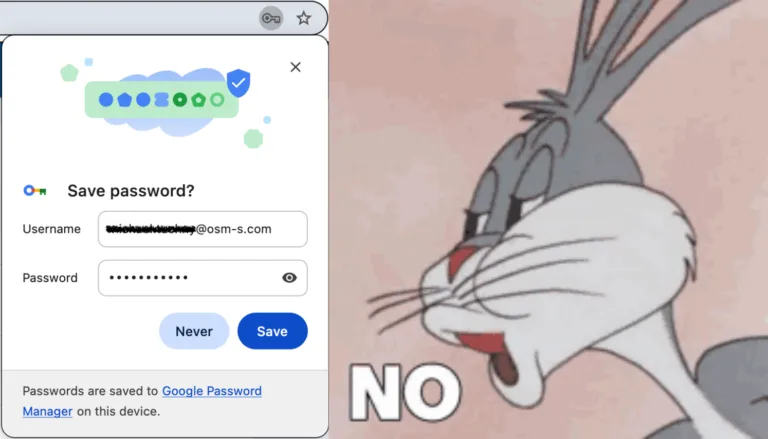
Many browsers today offer to save passwords automatically and even suggest them when you create new accounts. At first glance this feels very similar to a password manager, and for many users it creates the impression that their browser is already handling everything for them.
While this is convenient, it is not the same as using a dedicated password manager and it comes with important limitations.
One of the main risks comes from malicious software that is designed to look for stored login data on a device. If a system is compromised, saved passwords in the browser can sometimes be accessed along with other sensitive information. The built-in password manager in Google Chrome is relatively secure, but it is tied to your Google account. If that account is lost or compromised, things can get serious quickly.
Dedicated password managers are built specifically to reduce this kind of risk. They store credentials in a separate, encrypted vault and are designed with stronger protection mechanisms compared to browser-based storage.
Two-Factor Authentication (2FA)
Two-factor authentication adds an additional layer of security on top of your password.
Instead of relying only on a password, login requires a second step to confirm your identity. This second factor is usually something you have, such as a code generated by an authentication app or a physical security key that you approve the login with. Even if a password is compromised, this extra layer can block unauthorized access and keep accounts protected.
The most important account: E-Mail
In most cases, your email account is the central point of your entire online identity. It is used to reset passwords for almost every other service you use, which makes it especially critical.
This is why email accounts should always be protected with a strong, unique password and two-factor authentication enabled wherever possible.
Conclusion
Using the same password everywhere might feel convenient, but as shown above, it creates significant security risks in practice. A password manager combined with two-factor authentication turns this idea into something far more secure and manageable. Instead of trying to remember many different passwords, you only need one strong master password while everything else is generated and stored safely in the background.
Making this small change can significantly improve your online security without making everyday life more complicated.
A Quick Start Guide to Password Managers
For this guide we will be using KeePassXC as an example for how fast and easy it is to setup a password manager locally on your device!
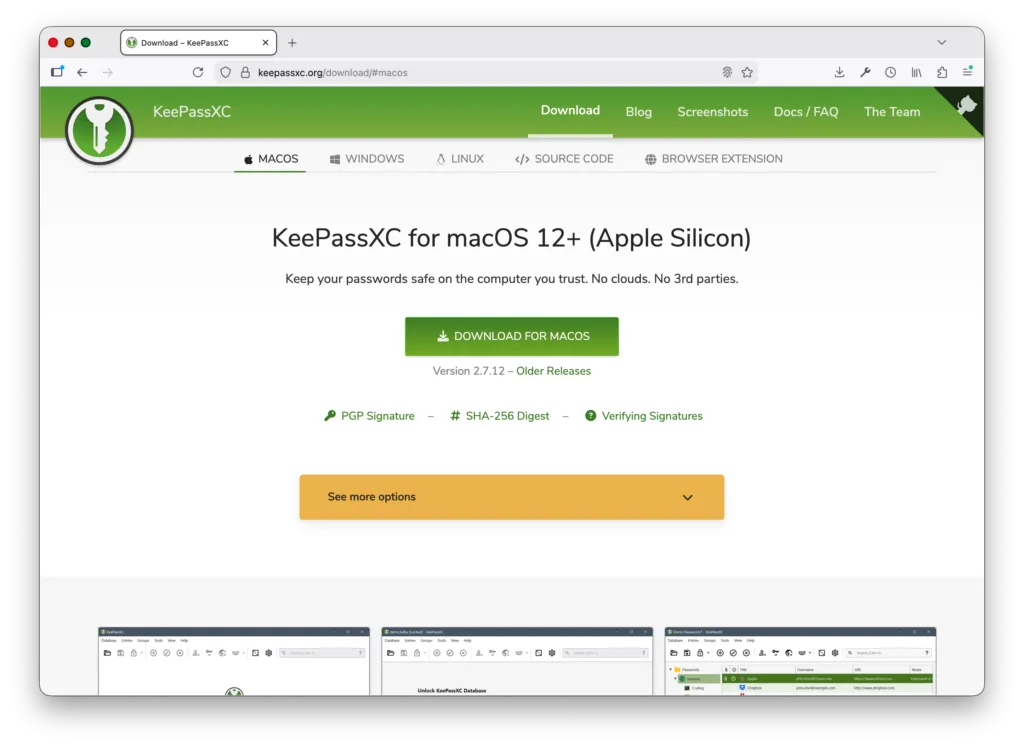
1. Download and install KeePassXC
Press one of the icons below to open the download page of KeePassXC for your selected OS, in our example we will be using MacOS.
2. Open KeePassXC, create Password Database and set the Master-Password
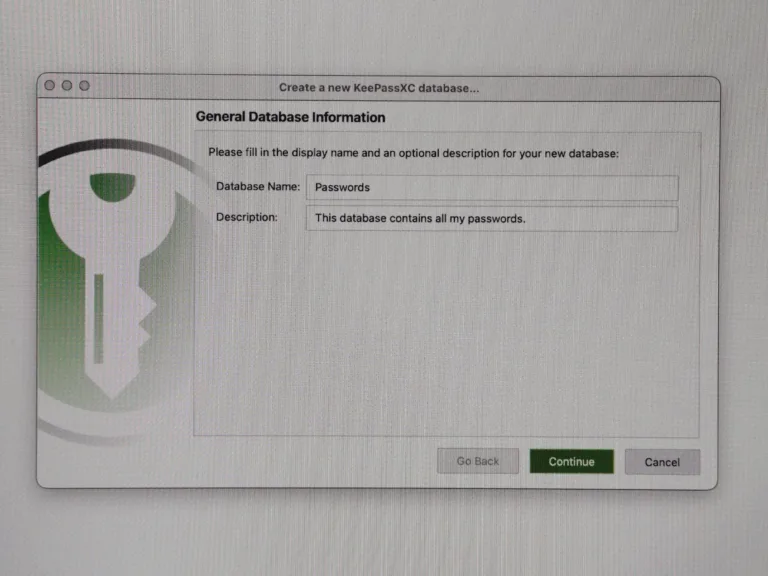
After opening the downloaded installer and installing the KeePassXC application, you will be prompted with the setup to create your password database. The default name is “Passwords” but you can change this to your liking and also add a short description.
You might also notice a difference in the picture quality from now on. This is due to KeePassXC blocking screenshots –> a security feature!
It is not possible to take screenshots of the application, so we had to take pictures with a mobile phone instead.
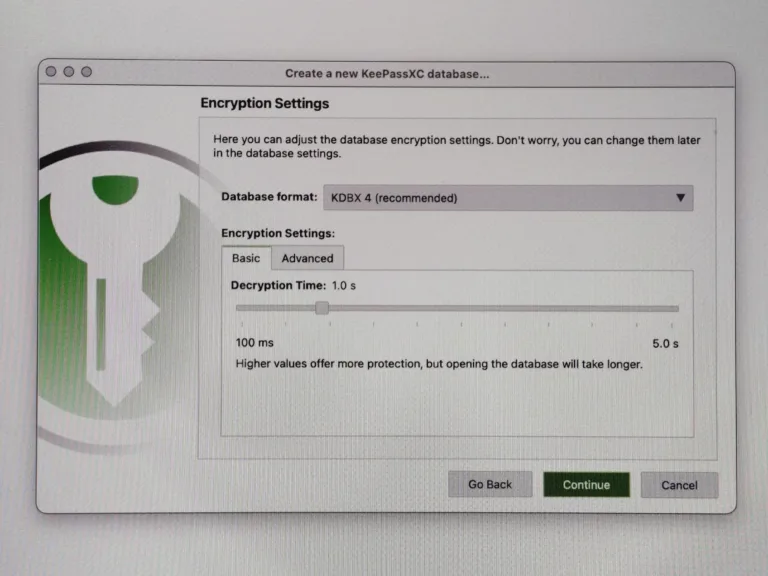
Next, KeePassXC presents its different encryption settings. We will continue with the recommended default settings. Feel free to do some research and change those settings to your needs.
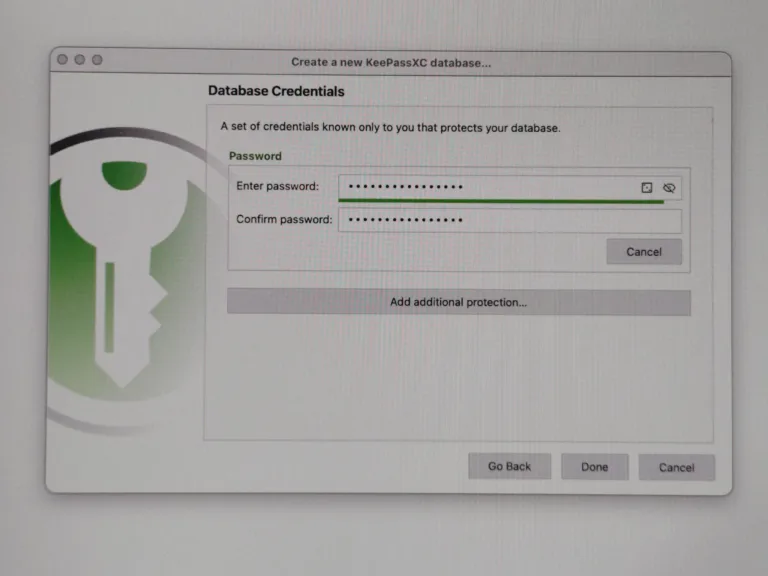
Now we come to the Key-Part of a password manager: THE ONE STRING TO RULE THEM ALL
Also known as the master-password to unlock you password database, the only one you need to remember from now on!
Make sure it is something complex and not similar to other password patterns you have used in the past.
3. Add your first Password Entry
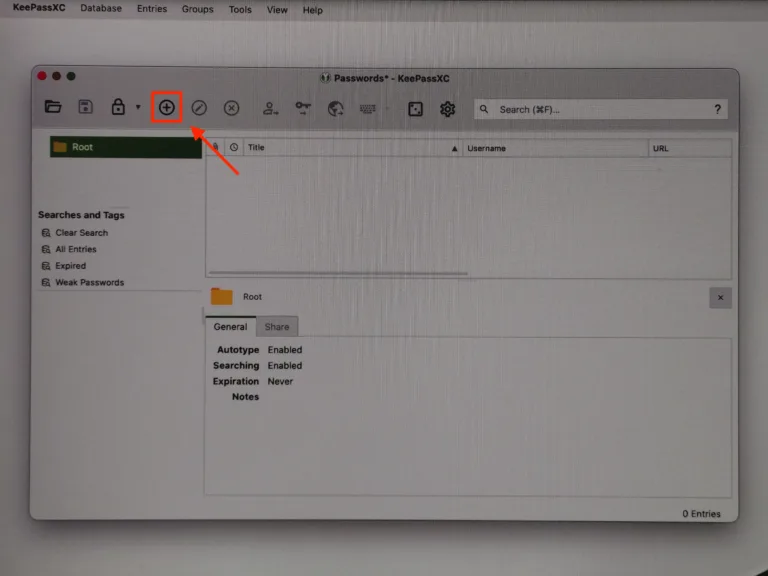
When the setup is complete, you will be greeted by your open password database. Looks quite empty now but I promise you will have a lot of entries as soon as you start adding all your different online accounts.
To add a new entry just press the + button at the top.
A new window will open prompting to add all the information you need to login to an account like username and password. Of course it also needs a title and if you like you can also add the URL of the login page, which might become important if you are also using the browser extension of KeePassXC.
If you are using the Firefox Browser, there is an extension that allows to paste in the login details with a simple click on a button.
Check it out here: https://addons.mozilla.org/en-US/firefox/addon/keepassxc-browser/
Don’t worry, you don’t need to think of a complex password for this new entry, you can just generate one!
To do so, press the button that looks like a die.
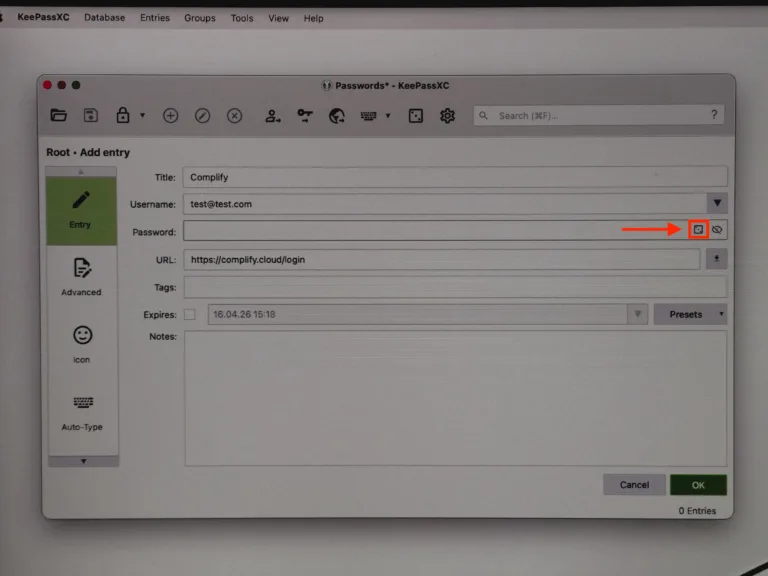
This will, again, open a new window. Actually you don’t need to do anything here except pressing “Apply password”. The default settings are already OK enough but you can change those to fit your needs!
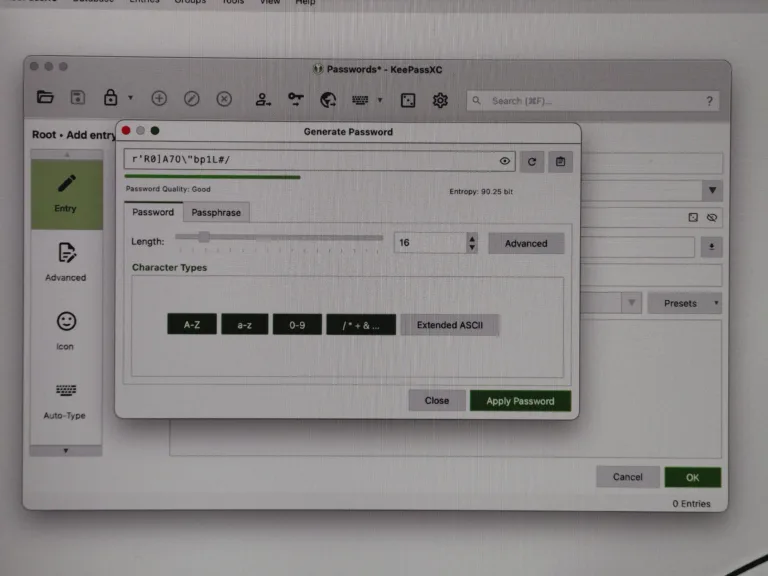
After pressing “Apply Password” and “OK” the entry is successfully added. You don’t need to remember the complex password you just randomly created with the password manager.
To use it, just select the entry by clicking on it once and press CTRL+C to copy the password and CTRL+V to paste it into the login field.
Congratulations String-Bearer! 🥳
You are now ready to securely store all your passwords!
PS: Don’t forget to regularly create a backup of your .kdbx file! 😉